WTM IRE Setup — User Manual
WTM IRE Setup is the app used to photograph the products in the IRE (Image Recognition Engine) catalogs and send those photos to the system. With it you can:
- see which catalogs still need photos;
- photograph products with your phone's camera;
- adjust the photos (crop and background removal);
- send the photos — or keep them saved to send later if you are offline.
Button labels and messages appear in this manual exactly as they are shown in the app (some in English, some in Portuguese).
Contents
- Before you start
- Signing in
- Initial sync
- Catalogs screen
- Photographing a product
- Reviewing and editing photos
- Sending photos
- Using the app offline
- Signing out
- Troubleshooting
1. Before you start
- Account: use the email and password provided by the MC1 team. The app has no self-registration.
- Camera: the first time you open the camera, your phone will ask for permission. Tap Allow.
- Internet: required to sign in, refresh the catalog list and send photos. Without internet you can still take photos — they are saved on the phone and sent later (see section 8).
2. Signing in
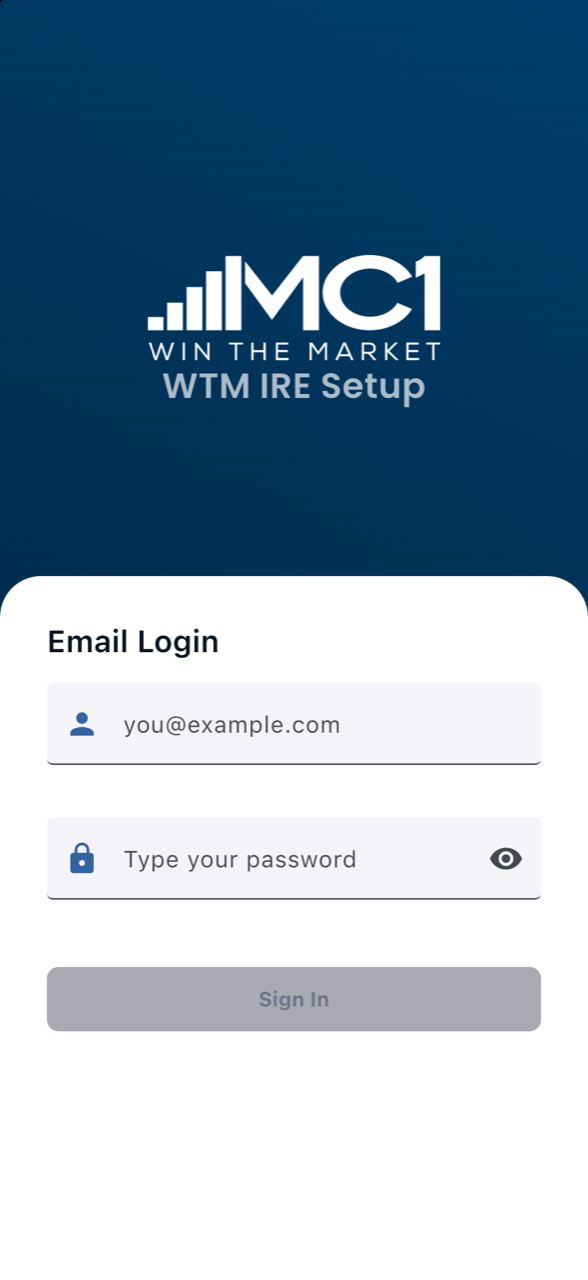
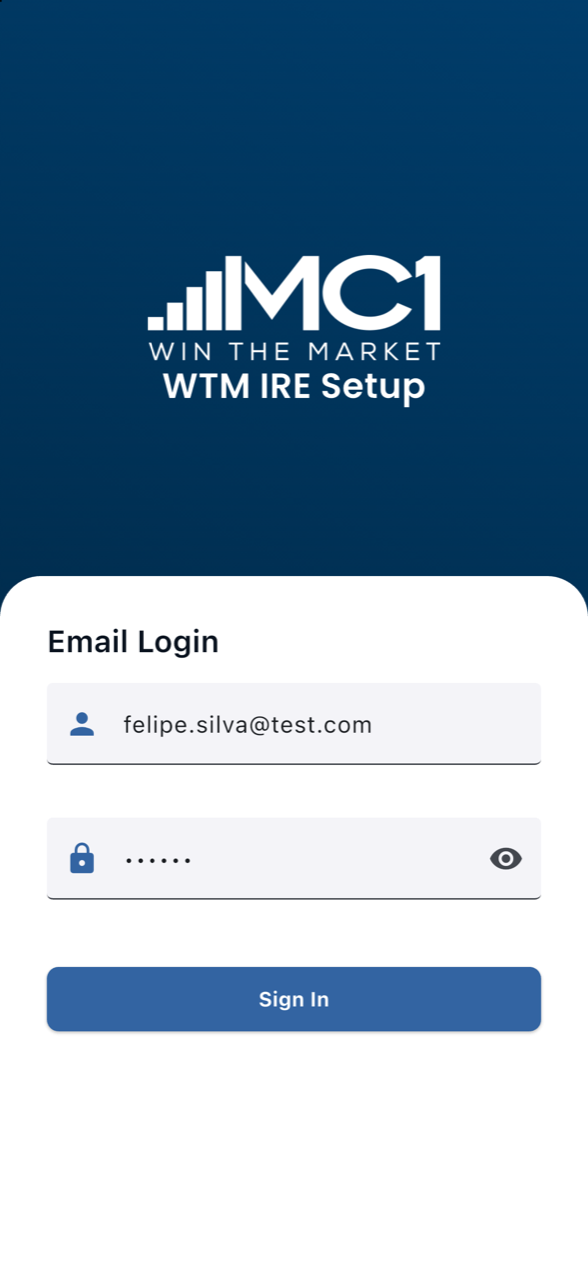
- Open the WTM IRE Setup app.
- Under Email Login, type your email in the first field.
- Type your password in the Type your password field. Tap the eye icon 👁 to show or hide the password.
- Tap Sign In. The button is enabled only after a valid email and password are entered.
After the first sign-in, the app remembers your account. Next time it goes straight to the sync screen without asking you to sign in.
If sign-in fails, a red message appears at the bottom of the screen explaining why (for example, wrong password). Check your details and try again.
3. Initial sync

Right after signing in (and every time the app opens), the message Sincronizando dados... (“Syncing data…”) is shown while the app downloads the latest catalog list.
Wait: when it finishes, the app opens the catalogs screen automatically. If there is no internet, Continuando com dados locais... (“Continuing with local data…”) appears and the app opens with the data already saved on the phone.
4. Catalogs screen
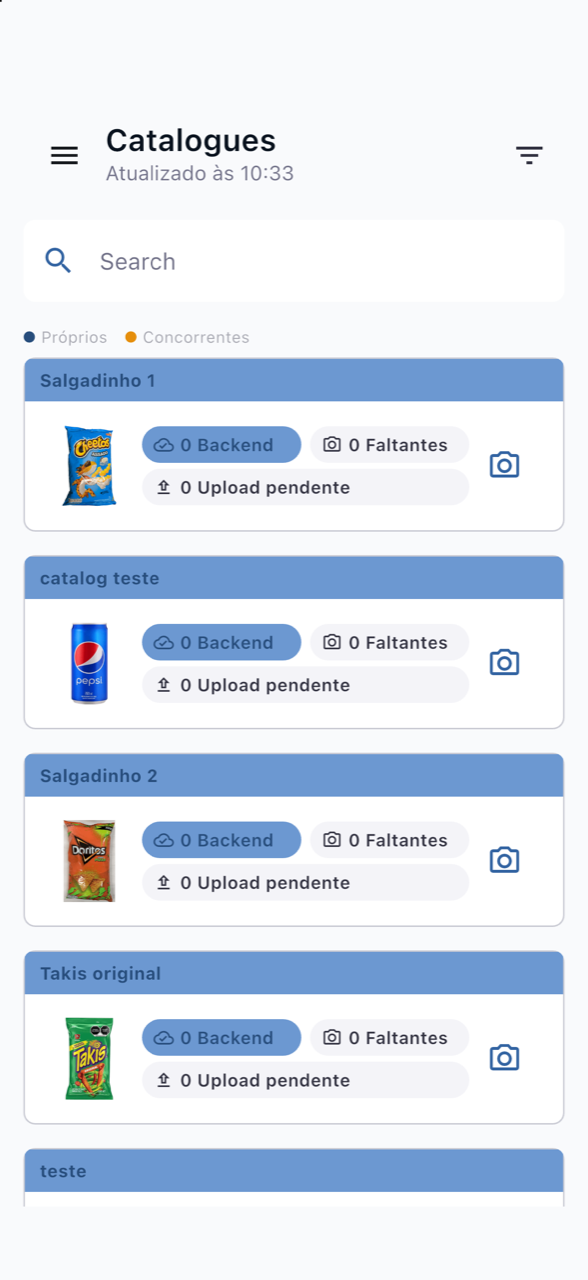
This is the app's main screen. At the top you see the title Catalogues and the time of the last update (Atualizado às HH:MM — “Updated at HH:MM”).
Reading each card
Each card represents a product/catalog:
| Element | Meaning |
|---|---|
| Blue bar at the top of the card | Own product (Próprios) |
| Orange bar at the top of the card | Competitor product (Concorrentes) |
| Backend | Number of photos of this product already in the system |
| Faltantes (“Missing”) | How many photos are still needed for this product. Turns red while any are missing |
| Upload pendente (“Pending upload”) | Photos taken and saved on the phone that have not been sent yet |
| Camera icon 📷 | Opens the camera to photograph this product |
The legend ● Próprios ● Concorrentes below the search field is a reminder of what the colors mean.
Refreshing the list
Pull the list down and release to fetch the latest data.
Viewing the product image

Tap the product thumbnail (on the left of the card) to see it enlarged. Tap X to close.
Searching for a catalog
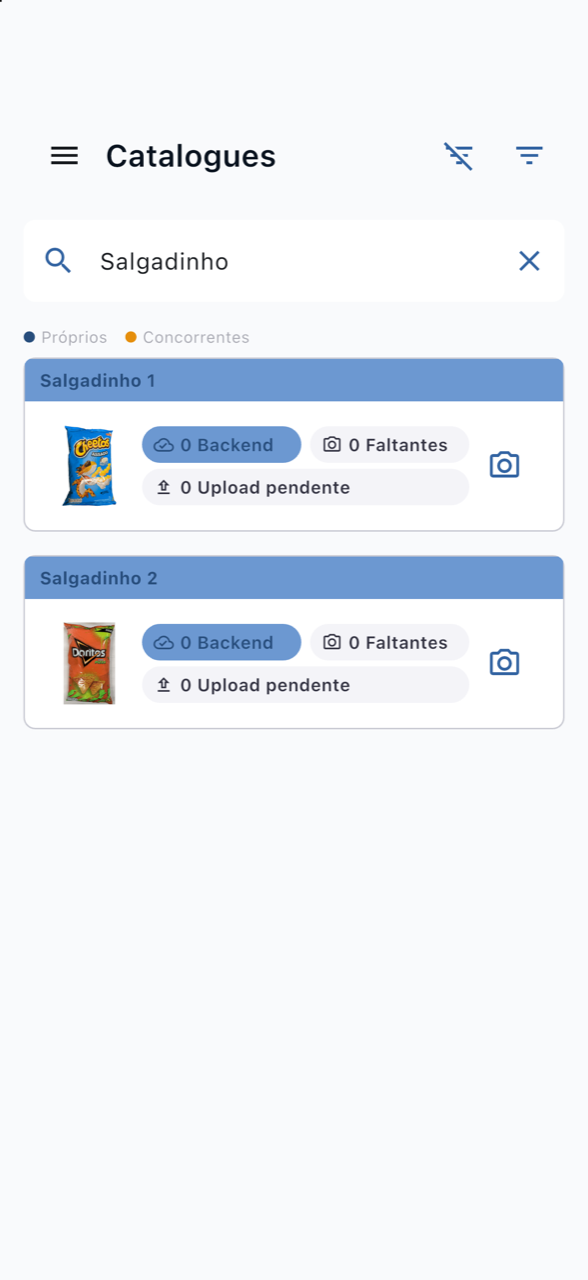
- Tap the Search field.
- Type part of the product name. The list is filtered as you type.
- To clear the search, tap the X at the end of the field.
Filtering catalogs
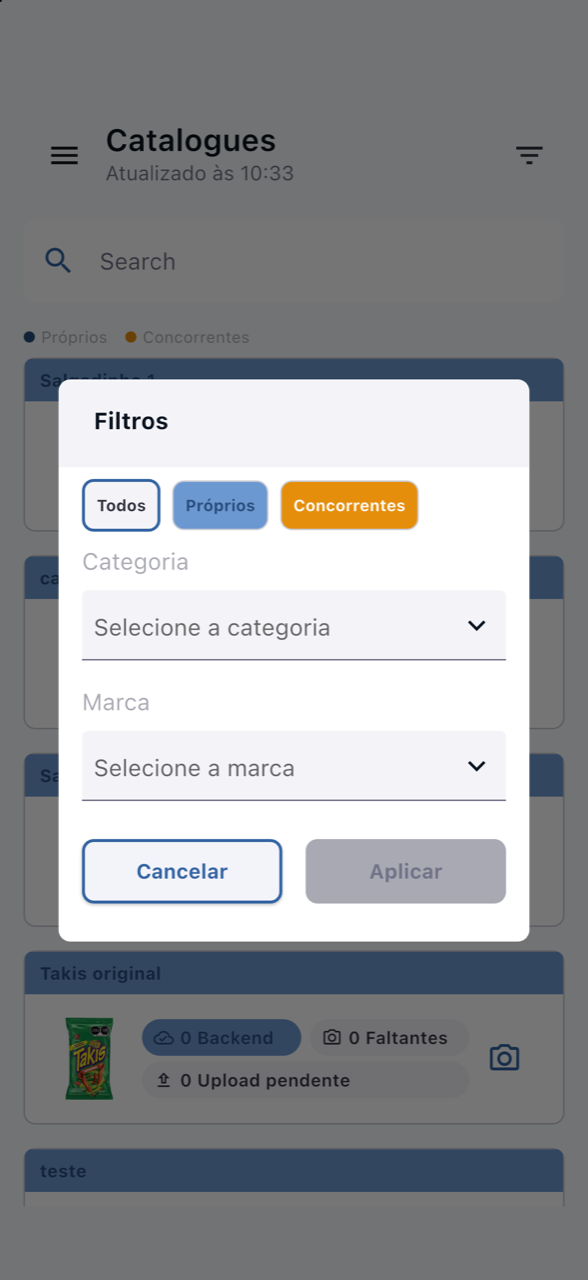
- Tap the filter icon (three decreasing lines) in the top-right corner.
- Choose Todos (All), Próprios (Own) or Concorrentes (Competitors).
- Optionally choose a Categoria (Category) and/or a Marca (Brand).
- Tap Aplicar (Apply) — or Cancelar (Cancel) to close without changes.
While a filter or search is active, a crossed-out filter icon appears next to the filter button. Tap it to clear all filters at once.
5. Photographing a product
- On the catalogs screen, tap the camera icon 📷 of the product you want.
- The camera opens full screen. There are three buttons at the bottom:
| Button | Position | What it does |
|---|---|---|
| Quick capture (photo icon with “+”) | Left | Takes a photo and adds it straight to the thumbnail strip without leaving the camera. Ideal for taking several photos in a row. |
| Capture with preview (round button) | Center | Takes a photo and shows the Picture Preview screen so you can check it before accepting. |
| Done (shows the number of photos) | Right | Appears after the first photo. Closes the camera and goes to the photo review. |
Capture with preview
After tapping the center button, Processing your picture... appears, followed by the Picture Preview screen:
- Confirm — keeps the photo;
- Retake — discards it and returns to the camera to shoot again.
Thumbnail strip
Photos you take appear as thumbnails above the buttons. Tap the X on a thumbnail to discard it.
Each product accepts a maximum number of photos (usually 20). When the limit is reached, the quick-capture button is disabled.
Tips for good photos
- Use a plain, well-lit background without strong glare on the packaging.
- Frame the whole product so it fills most of the picture.
- Shoot different angles: front, back, sides.
6. Reviewing and editing photos
When you tap Done, the app shows the product's review screen:
- at the top, the product EAN (barcode) and name;
- the Add Images button, which returns to the camera to take more photos;
- the Images Taken grid with all photos taken;
- the Send Images button, to send them.
Editing a photo
Tap any photo in the grid to open it full screen. There you can:
- Crop: drag the edges/corners of the frame over the image to keep only the product.
- Remove background: tap the background-removal button in the middle. Wait for Removing background…; the background is replaced with dark gray. To go back to the original, tap the undo button that appears in the same place.
- Delete the photo: tap the red trash can in the top-right corner.
- Confirm — saves the crop/edit and returns to the grid.
- Cancel or the < arrow — returns without saving changes.
Leaving without sending
If you tap X (or go back) while there are unsent photos, the app asks Descartar fotos? (“Discard photos?”):
- Cancelar (Cancel) — stays on the screen and keeps the photos;
- Descartar (Discard) — deletes the photos taken and returns to the list.
7. Sending photos
- On the review screen, tap Send Images.
- The Send Images window asks if you want to send the photos. Tap Send (or Back to go back).
- While sending, the window shows Sending Images with a progress bar.
- When finished:
- Upload Completed + All images uploaded successfully! — all good. Tap Back To Main Menu to return to the catalog list. The product's Backend and Faltantes counters are updated.
- Some images failed to upload — some photos were not sent; the list shows which. Tap Try to upload failed images to retry, or Back To Main Menu.
- Error — the upload could not be done. Tap Try again to retry or Close to close.
8. Using the app offline
The app is designed to keep working with unstable internet:
- When opened offline, the sync shows Continuando com dados locais... and the list displays the last saved data.
- When you pull to refresh offline, the message Sem conexão — exibindo dados locais (“No connection — showing local data”) appears.
- When you send photos offline, the window shows Saved for Later with the message “N imagem(ns) salva(s) para envio quando houver conexão.” (“N image(s) saved to send when a connection is available.”). Tap Back To Main Menu. The product's Upload pendente counter shows how many photos are waiting.
- When the internet comes back, pending photos are sent automatically — to make this happen, keep the app open on the catalogs screen when the connection is restored.
⚠️ Do not uninstall the app or sign out while there are photos in Upload pendente — they are stored only on the phone until they are sent.
9. Signing out
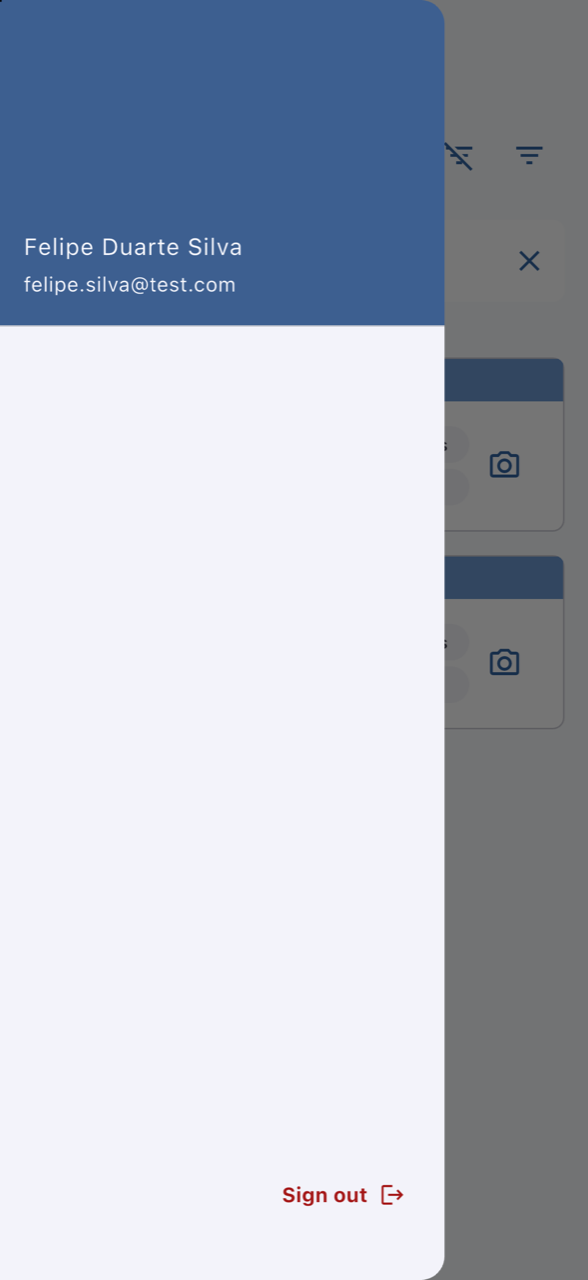
- On the catalogs screen, tap the menu icon ☰ (top-left corner).
- The menu shows your name and email.
- Tap Sign out (at the bottom of the menu).
10. Troubleshooting
“Failed to fetch catalogs”
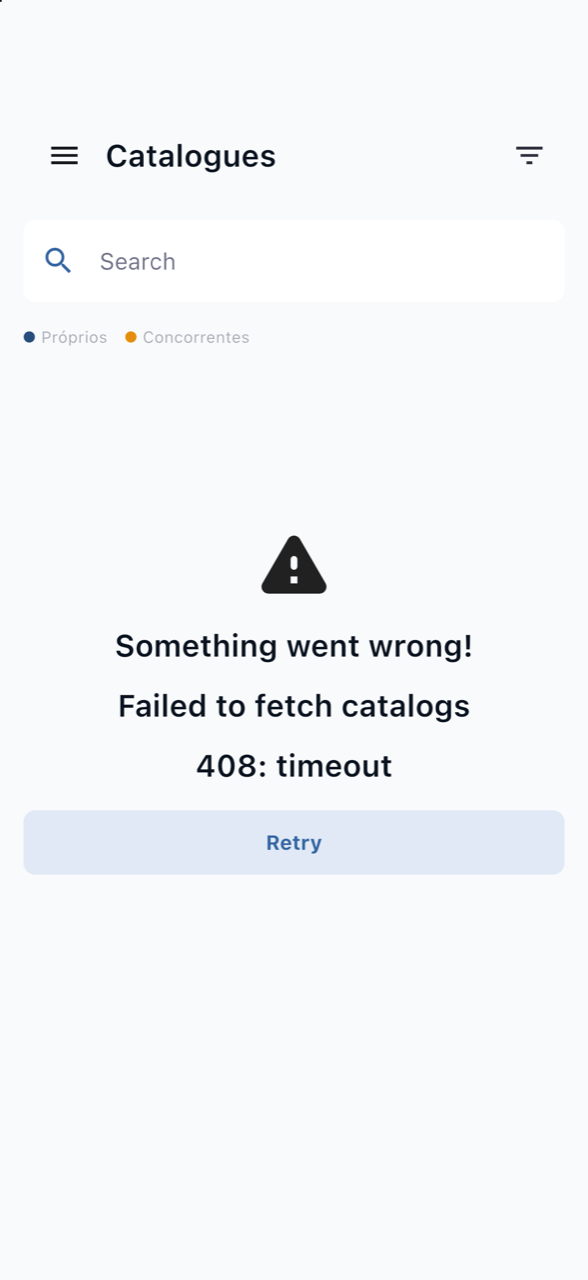
The catalog list could not be loaded (for example, slow internet — 408: timeout). Check your connection and tap Retry.
“No cameras available” / camera error
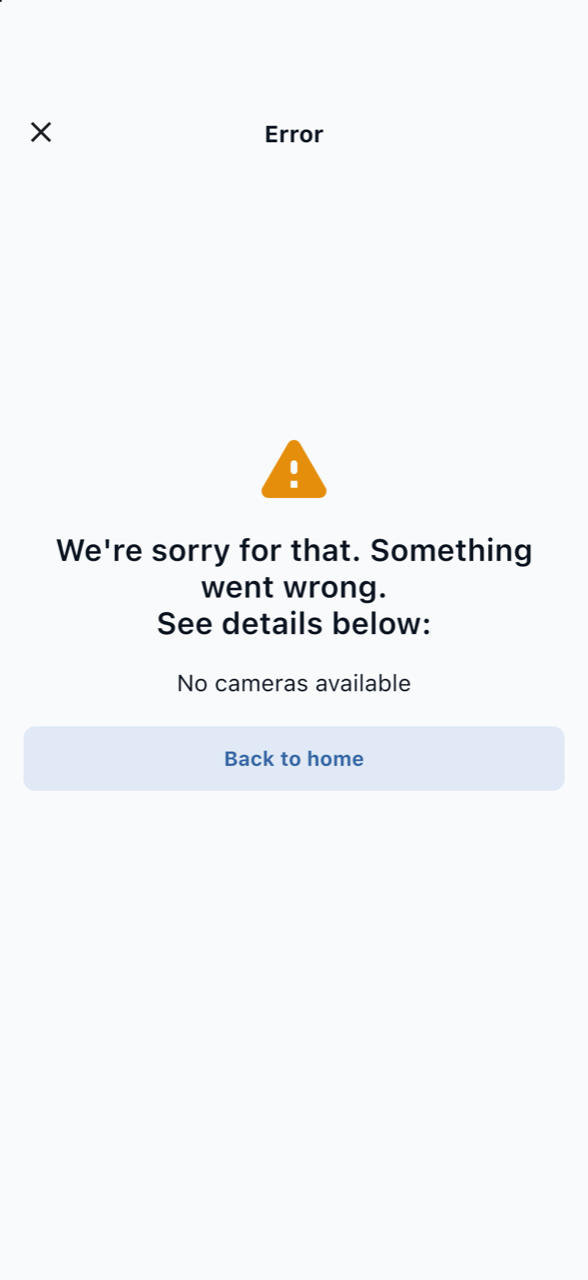
The app could not access the camera. Tap Back to home and:
- make sure the app has camera permission under Settings › WTM IRE Setup › Camera;
- close other apps that may be using the camera;
- if it persists, close and reopen the app.
I can't sign in
- Check that the email is correct and has no spaces.
- Check the password using the eye icon 👁.
- Make sure you are connected to the internet.
- If the problem continues, contact the MC1 team to check your account.
The “Faltantes” numbers did not change after sending
Pull the list down to refresh. If the photos are still in Upload pendente, they will only be counted after they are sent successfully.